|

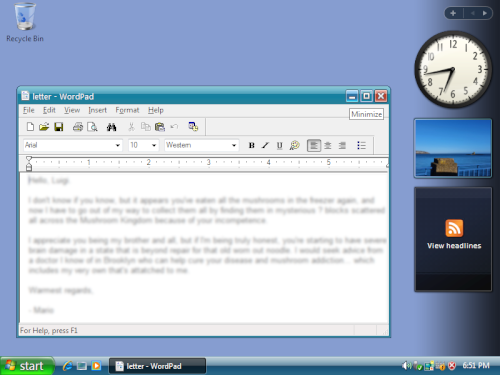
Windows—which act as
frames—display contents of files and programs on the desktop. Managing
windows is simple after learning the basics.
For instance; the names of each window appear at the top, known as the
title bar—also reflected by its respective taskbar button.
You can move windows by dragging
them. In the unmaximized state, click and hold the title bar and, while
holding down the mouse button, move the mouse pointer anywhere on the
screen.
Shrink windows by clicking Minimize in the right-side of the title bar. This will reduce the window to its button on the taskbar.
Maximize windows by clicking Maximize,
located next to the Minimize button. This fills up the frame of the
window to encompass the whole screen. Clicking Maximize again restores
it to its previous size.
Inside various windows, take this time to browse and learn the commands
you can use for all sorts of tasks. When you find a command you want,
simply click it.
If a program requires information before it can finish a command, a pop-up dialog appears. It might require the following:
- Clicking and typing inside a text box.
- Selecting a choice from the drop-down list by clicking the arrow, and then clicking the desired item.
- Choosing a singular option by clicking a radio button.
- Placing check marks inside check boxes next to one or more options you want.
If the contents of a file don't fit inside the current size of your window, use the dedicated scroll bars or scroll buttons by dragging and/or clicking them respectively, which shifts the view of the contents inside.
To change the size of a window, click the edges or corners of a window and drag the border to your preferred size.  |
|